Login and password problems
In this article
This article is for when somebody cannot get into the Vizito backoffice: a forgotten password, a reset link that does not work, a colleague who never received the email to set their password, or a user who signs in through Microsoft and has no password at all. Adding users and choosing their role is covered in User management and user roles.
Forgot your password
-
Open https://backoffice.vizito.be/ and click “Continue with email”.
-
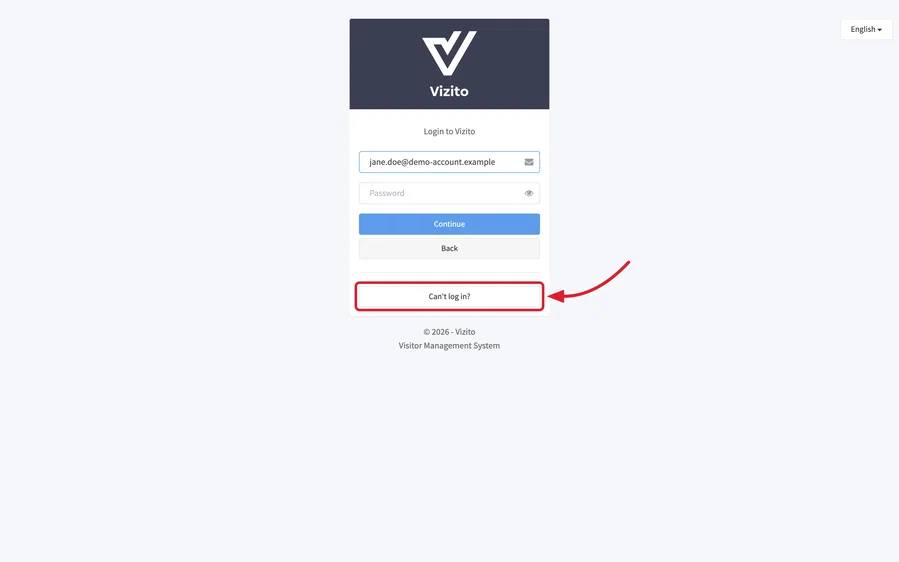
Click “Can’t log in?” under the “Continue” button. You can type your email address first; it is carried over to the next page.
-
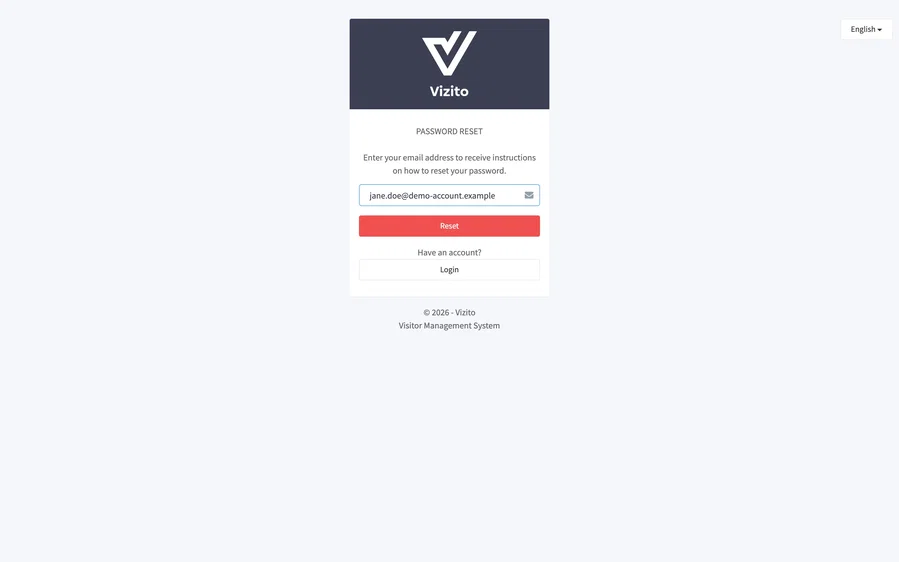
On the “PASSWORD RESET” page, check the email address and click “Reset”.
-
The page reads “If your email address exists in our system, you should receive an email with reset instructions.” Open the email from Vizito and click the button in it.
-
Type your new password twice on the “Please enter your new password twice.” page and click “Reset”. Then sign in with the new password.
The password has to be at least 8 characters long, contain an uppercase letter, a lowercase letter and a special character, differ from your email address and from passwords you used before.
No email? Check your spam folder and check that you typed the address you sign in with. The page gives the same answer for an unknown address, so a typo in the address is not reported. If the address is right and nothing arrives, ask an administrator of your account to reset your password for you, as described below.
How long the links are valid
- The password reset link from “Can’t log in?” or from an administrator is valid for one hour and can be used once.
- The link to set a password that a new user receives when they are added under “Manage users” is valid for 48 hours and can be used once.
An expired or used link does not show an error: the reset page simply sends you back to the login page, and a used verification link ends on “Account verification failed.” with “Your verification link might have expired.” Request a new link and use the newest email; every request replaces the link before it.
The link can be opened on any device and in any browser. It does not have to be the one the request was made from. What does matter is that the link is opened by you: some mail systems open every link in an email to check it for malware, and that visit uses up the single-use link. If the reset page sends you back to the login page every time, ask your IT department whether such a link scanner is in place and, if it is, have an administrator reset your password and pass the link on through another channel.
Reset a colleague’s password from Manage users
You can send the reset email when your role holds the privilege “Add, edit and delete users and roles”. Local admins and Global admins have it, and a custom role can hold it too. This is the way out when the emails from “Can’t log in?” do not arrive, or when a user is locked out.
You can only do this for a user whose role you could assign yourself. A Local admin who opens a Global admin, for instance, finds every field greyed out and only the “Close” button. Your own row does work: “Reset password” is there, only “Delete” is missing and your own “Role” is greyed out.
-
Select “Administration” > “Manage users” in the left menu.
-
On the “Users” tab, click the row of the user. The “User details” window opens.
-
Click “Reset password”. The window closes and Vizito confirms with “An email has been sent to the user that allows them to reset their password.”
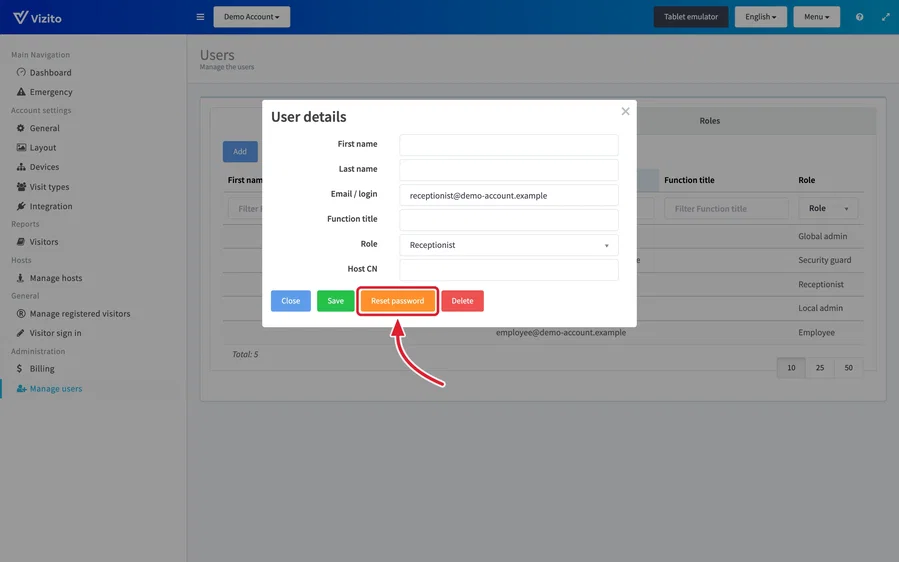
The user receives the same email as from “Can’t log in?”, with a link that is valid for one hour. It goes to the address shown under “Email / login”. That field is greyed out: the address is what the user signs in with, and it cannot be changed here. Note that “Reset password” also saves any change you made to the other fields of the window.
If a new user tells you they never received the email to set their password, this is also the button to use: the reset email works for a user who has not set a password yet.
When a user’s email address changes
Nobody can change “Email / login” of an existing user, not even their own. A new name, a new domain, a mailbox the user can no longer read or a successor taking over all come down to the same two steps:
- Add a new user with the new address: click “Add” under “Administration” > “Manage users” and give them the same role and, where it applies, the same “Host CN”. See User management and user roles.
- Once the new user can sign in, open the old user and click “Delete”.
The new user receives the welcome email like any newly added user. Deleting the old user signs them out and removes their access to this location. You cannot delete your own user: sign in as your new user, or ask another administrator, to delete your old one.
Two-factor authentication
A location can require a second step after the password: a six-digit code that Vizito emails to the user. If a “Two-Factor Authentication” page appears after your password and no code arrives, or a colleague lost access to the mailbox the code goes to, see Two-factor authentication. If you cannot say which email address the account is under at all, see Account recovery and ownership.
Users who sign in with Microsoft, Google or SAML
Users synchronised from Microsoft Entra ID, and users on an account where sign in runs through SAML, do not have a Vizito password. They sign in with “Continue with Microsoft”, “Continue with Google” or through your own identity provider, and their password lives there. For those users:
- “Reset password” is not shown in the “User details” window, and “Can’t log in?” is of no use to them. A password problem is solved by your own IT department.
- The email they received when they were added reads that they have gained access to your Vizito account; it contains no link to set a password.
- Their email address in Vizito has to match the address of their Microsoft or Google account exactly. “Email / login” cannot be changed in “User details”, so if the address changed, for instance after a migration, add a new user with the new address and delete the old one, as described under “When a user’s email address changes” above. See also Moving to a new Microsoft tenant.
See Azure Synchronization and Single Sign-On via SAML for how those users are created.
Still locked out
- “The combination username / password is not correct or your account has not yet been verified.” means either a wrong password or a new user who never clicked the link in their welcome email. Reset the password as above; that also verifies the account.
- “Too many login attempts. For your security, please wait 15 minutes before trying again.” means the login page has blocked further attempts for a quarter of an hour. Wait, then try again, with a freshly reset password if you are not sure of the old one.
- Nobody in your organisation can sign in any more, for instance because the only administrator left the company: contact us through the chat on vizito.eu or at info@vizito.eu from an email address on your company domain, and we sort it out with you. What we ask for, and how to hand an account over before somebody leaves, is in Account recovery and ownership.