Visitor satisfaction
In this article
Visitor satisfaction asks visitors to rate their visit on a five-point smiley scale when they sign out at the tablet. You switch it on per visit type, then read the scores back in the visitor log.
Enable visitor satisfaction
-
Open the Vizito backoffice and select “Account settings” > “Visit types” in the left menu.
-
Click “Edit” next to the visit type you want to change.
-
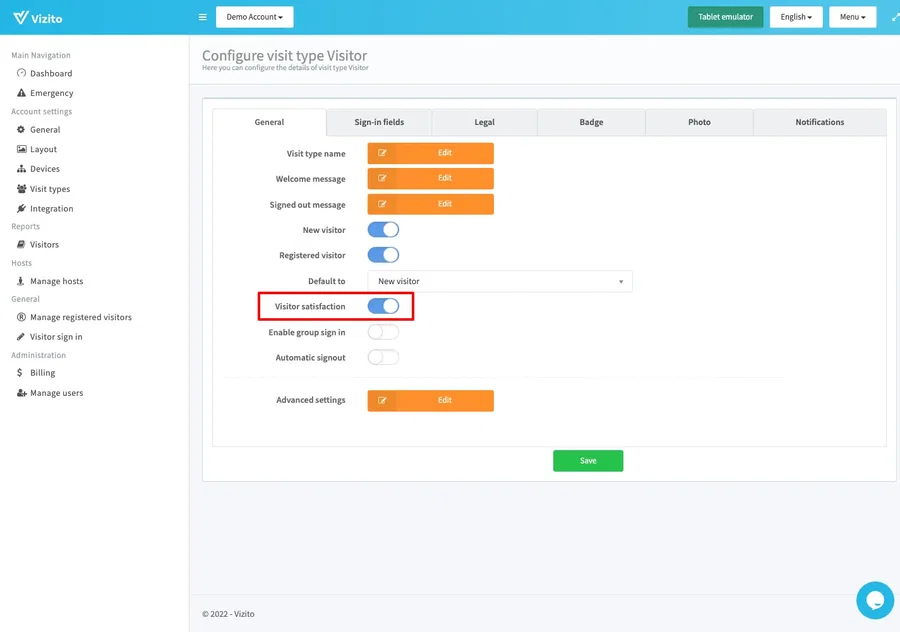
On the “General” tab, switch on “Visitor satisfaction”.
-
Click “Save”.
The switch applies to one visit type at a time, so repeat this for every visit type that should ask for a rating.
What the visitor sees
When the visitor signs out at the tablet, the confirmation screen asks them to rate the visit. The five smileys run from least satisfied on the left, in red, to most satisfied on the right, in green. Tapping one records the rating and returns the tablet to the welcome screen.
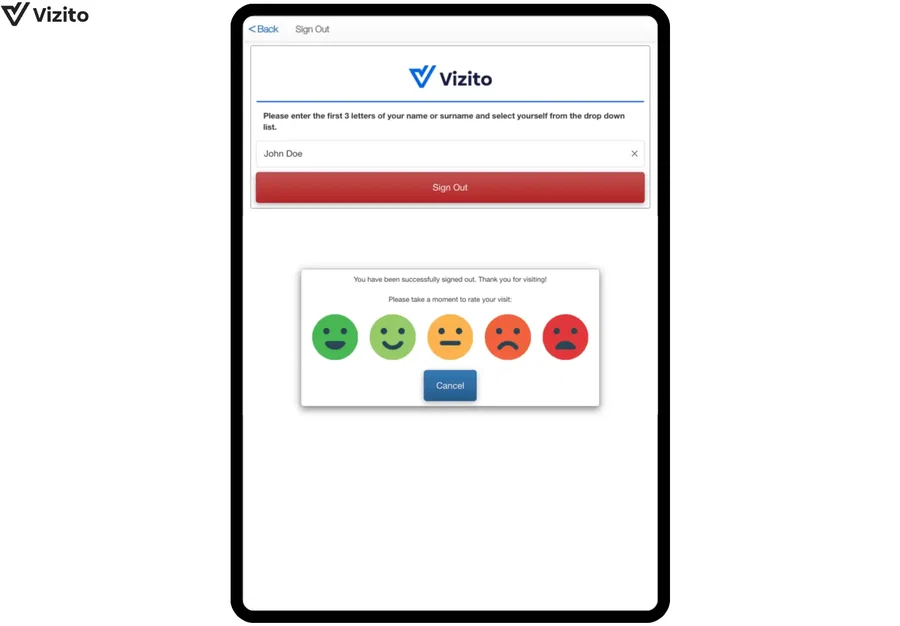
Rating is optional. A visitor who taps “Ok” without choosing a smiley is signed out as normal, and the visit is stored without a rating.
See the ratings in the visitor log
-
Select “Reports” > “Visitors” in the left menu to open the visitor log.
-
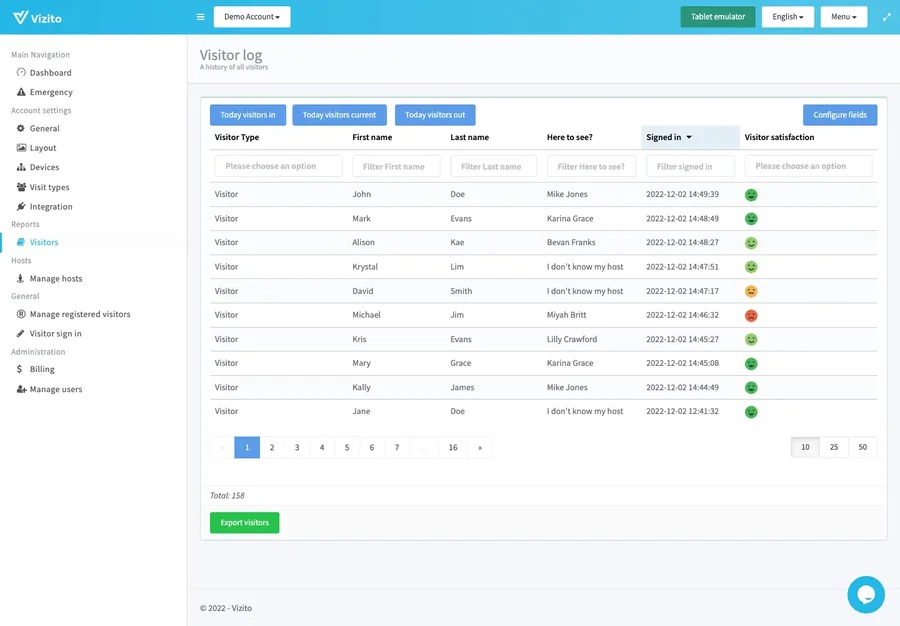
Click “Configure fields”, switch on “Visitor satisfaction” and click “Close”. The column is off by default, so until you switch it on the log shows no ratings at all.
-
Pick a rating in the filter under the “Visitor satisfaction” column heading to show only the visits with that score.
Rated visits show their smiley in the column. Visits the visitor skipped leave the cell empty.
See the rating for one visit
Click any row in the visitor log to open the “Visitor details” window. The “Visitor satisfaction” row shows the smiley the visitor picked.
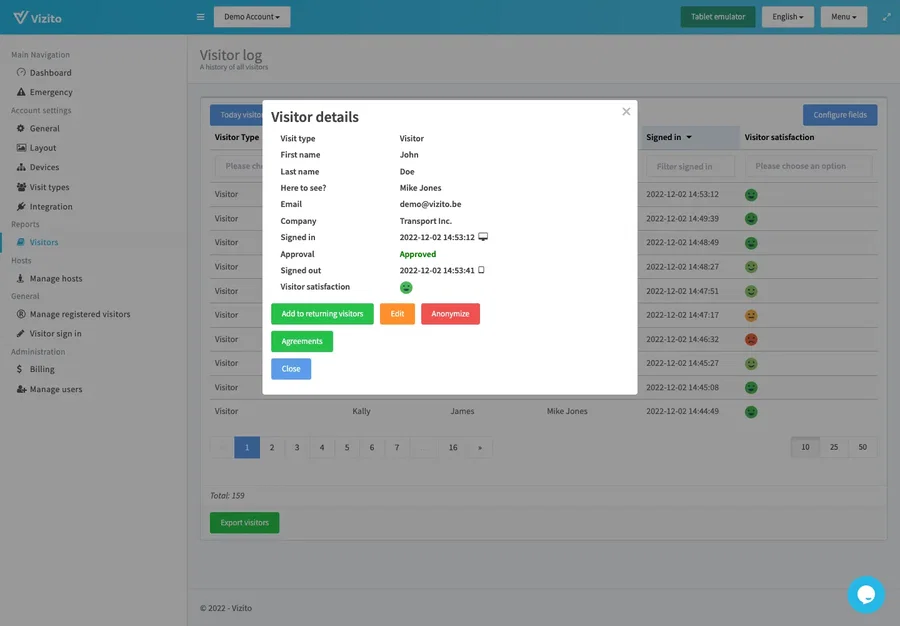
The row is only listed for a visit that was rated. For an unrated visit, “Visitor details” leaves the row out altogether rather than showing it empty.
The visitor log and the “Visitor details” window are the only places a rating is shown. There is no separate satisfaction report or chart, and the dashboard does not show a satisfaction figure.