Email and SMS
In this article
Vizito tells the host that their visitor has arrived. The host gets an email if you have given them an email address, and an SMS text message if you have given them a mobile number: see Host configuration for those details. The notifications themselves are set per visit type, so a contractor’s host can be told something different than an ordinary visitor’s host.
Turn on host notifications
-
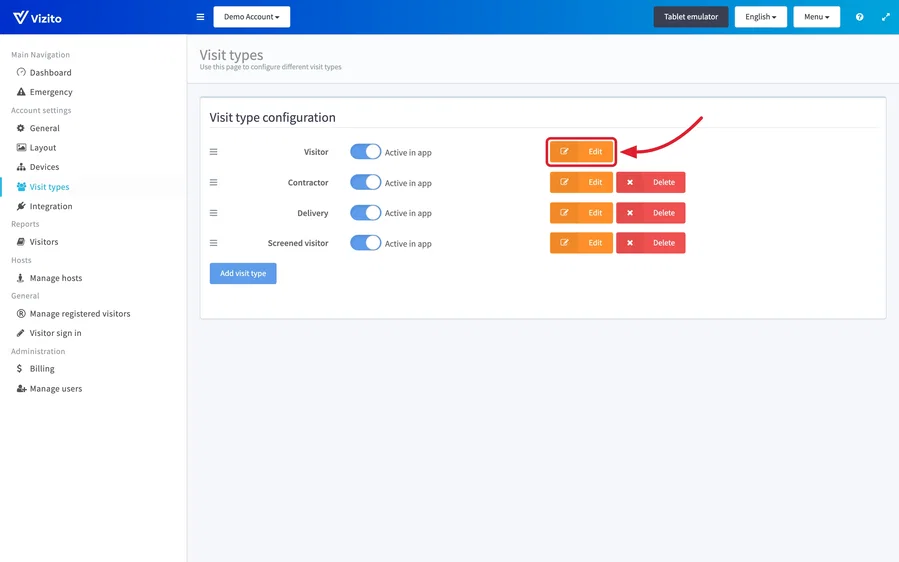
Open the Vizito backoffice and select “Account settings” > “Visit types” in the left menu.
-
Click “Edit” next to the visit type you want to configure.
-
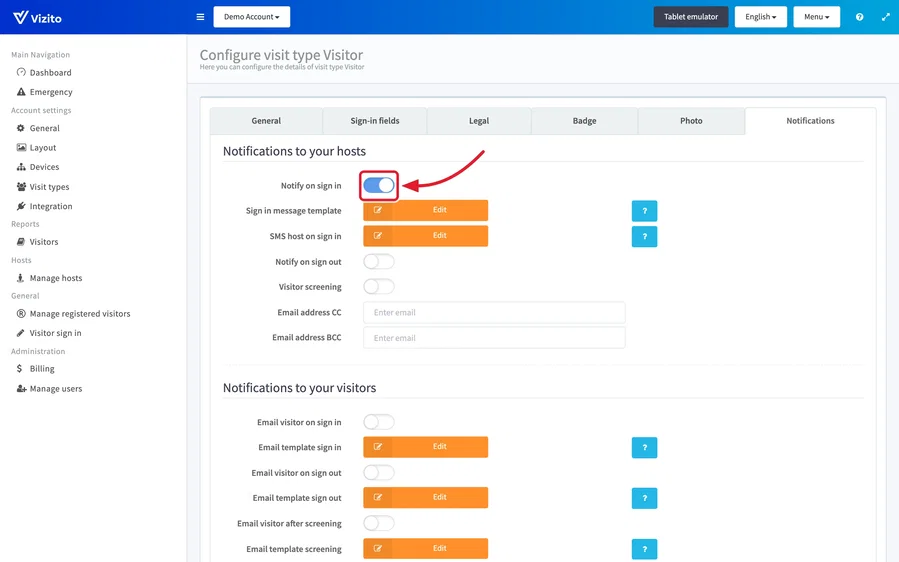
Open the “Notifications” tab. Everything in this article is in the “Notifications to your hosts” block at the top of it.
-
Switch on “Notify on sign in”.
-
Switch on “Notify on sign out” as well if the host should also hear when their visitor leaves. There is no SMS row for sign out, so that one goes out by email only.
-
Click “Save” at the bottom of the tab.
Write the message the host receives
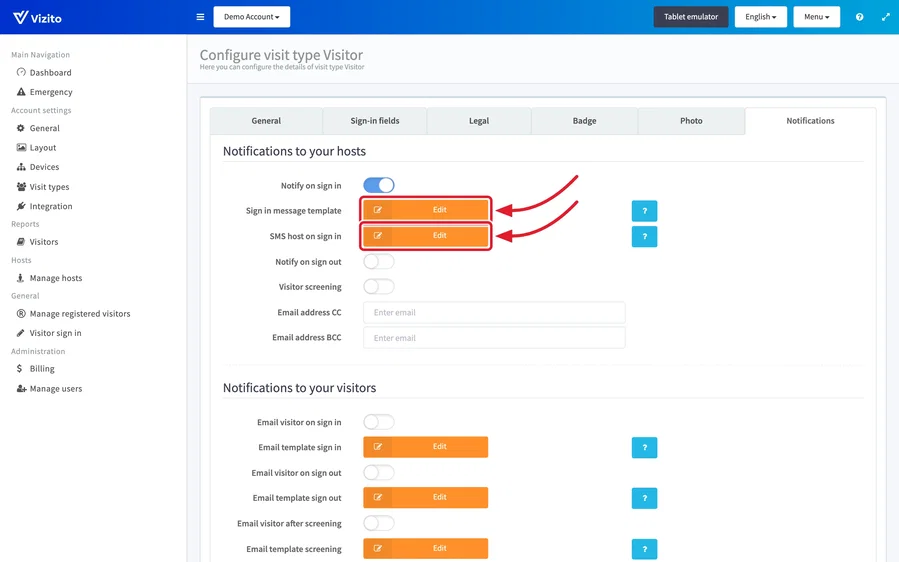
Two rows in the same block hold the templates. Both open in their own window, and both keep a separate text per language: pick the language at the top of the window first, then edit.
Sign in message template
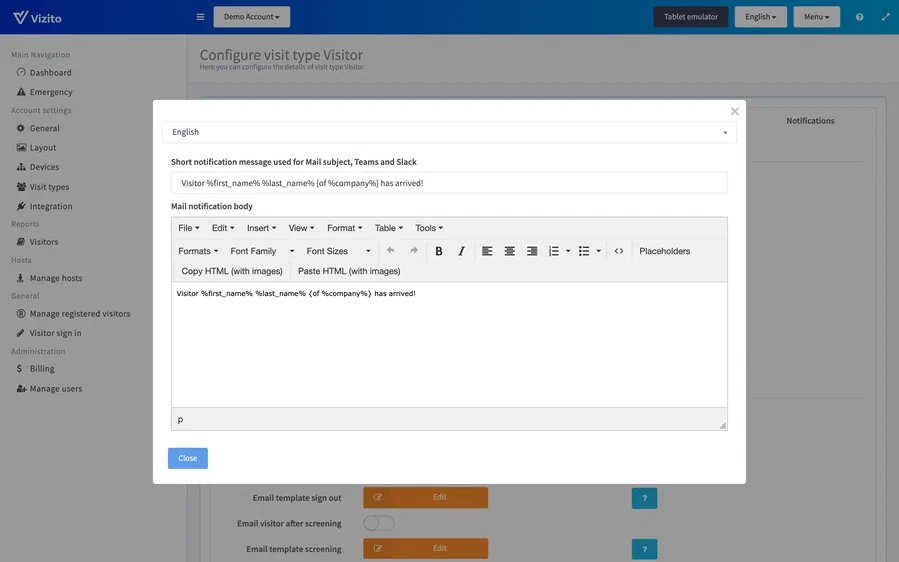
Click “Edit” next to “Sign in message template” for the email.
- “Short notification message used for Mail subject, Teams and Slack” is one line. It is the subject of the email, and it is the whole message on Microsoft Teams and Slack, so keep it readable on its own. Connecting those two channels is a separate job: see Teams notifications and Vizito notifications in Slack.
- “Mail notification body” is the body of the email.
- “Placeholders” on the editor toolbar inserts a value that Vizito fills in per
visit, such as
%first_name%. See Messages / placeholders for the list and for the curly-bracket notation that hides a sentence when its placeholder is empty. - “Close” returns to the tab. The text is stored when you click “Save” on the tab itself.
SMS host on sign in
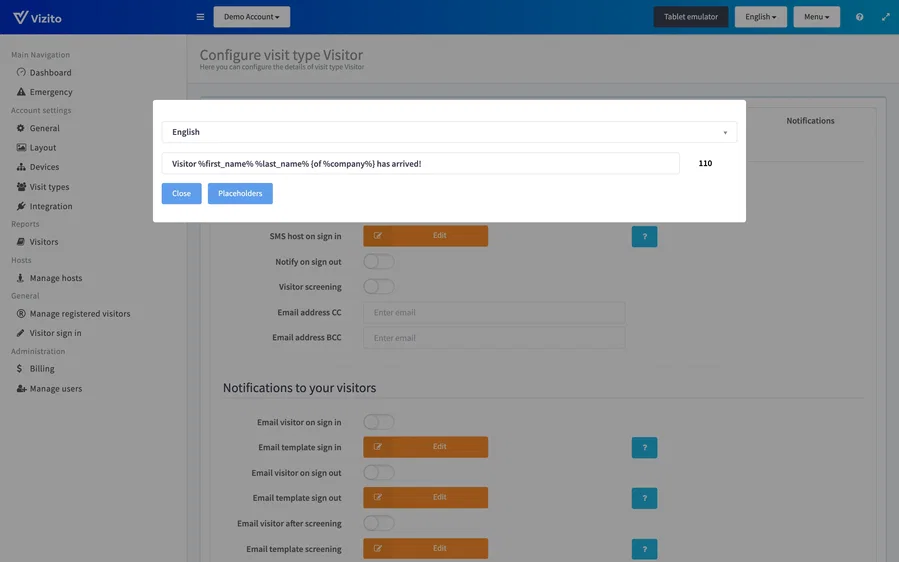
Click “Edit” next to “SMS host on sign in” for the text message. It is a single line with its own “Placeholders” button, and a counter beside the field keeps track of its length as you type.
Is the visitor photo included?
If the visit type takes a photo (“Take visitor photo” on the “Photo” tab of the visit type), the sign-in email to the host carries that photo as an attachment, named your_visitor.jpeg. It is not shown inside the text of the email and there is no placeholder for it, so you cannot position it in the template. Hosts see it as an attached picture in their mail client.
Everything else is text only. The SMS text message, the Teams message and the Slack message never contain the photo. If your hosts need to see who is waiting, email is the channel to use. The photo is also stored with the visit: open it under “Reports” > “Visitors” and the “Visitor details” window shows it. See Visitor log.
Text messages included in your plan
Email notifications are unlimited. Text messages are not: a trial includes 25 in total, and a paid plan includes a number per calendar month.
| Plan | Text messages per month |
|---|---|
| Standard | 100 |
| Pro | 300 |
| Enterprise | 500 |
Every text message Vizito sends for the location counts, whichever visit type or host it was for. There is no SMS for sign out, so a visit uses at most one.
Where the counter is. “Administration” > “Billing” shows “Text messages” under “Usage this month”, with the number your plan includes next to it. The bar turns orange at 80% and red once you are over. The dashboard also shows “MONTHLY SMS COUNTS” for the current month. See Billing.
When the trial messages are used up. The trial stops sending at the 25th message, and the bar at the top of the backoffice reads “Your trial’s SMS limit has been reached.” Hosts keep getting their email. Subscribing lifts the limit straight away.
When the monthly bundle of a paid plan is used up. Nothing stops. Text messages keep going out, the meter only turns red and names the plan that would cover the month. An occasional busy month is fine; when you are over the bundle month after month, we contact you to move to a larger plan, or to add an SMS pack to your subscription if the plan itself fits. You can also ask for either yourself: “Change plan” on the Billing page requests the larger plan, and an SMS pack is arranged through the chat in the backoffice or at info@vizito.eu. There is nothing to buy on the tablet or in a shop.
No host receives text messages at all. On a paid plan the bundle is never the reason, since it does not cut anything off. Check, in this order:
- “Account settings” > “General” > “Notification settings”: “Notification channels” has to include SMS. Without it, no text message is sent for any visit type.
- The visit type: “Notify on sign in” is on and “SMS host on sign in” holds a message. An empty template sends nothing.
- The host: the mobile number is in international format with the country code, for instance +32 471 12 34 56. See Host configuration.
- Still nothing? Contact us through the chat or at info@vizito.eu with the name of the location and one host it should have reached; we can see in the log whether the message left and what the carrier answered.
Which address these emails come from
By default every notification goes out from vizito@vizito.be. You can send from your own domain instead, which takes one setting and one or two DNS records: see Email delivery and sender address. Text messages are unaffected either way, since SMS has no from address of that kind.
Copy someone else on every notification
“Email address CC” and “Email address BCC”, at the bottom of the same block, copy a fixed address on the host notifications of this visit type. A reception mailbox is the usual reason to use them.
The same two fields exist once for the whole account, together with the “Notification channels” setting that decides which channels Vizito may use at all. Both are under “Account settings” > “General” > “Notification settings”: see Account settings.
“Visitor screening” sits in this block too. It asks the host to approve or reject the visitor instead of simply announcing them: see Visitor screening.