Plastic card labels
In this article
Vizito can print visitor badges on plastic cards as well as on paper labels. These professional plastic visitor badges were printed with the ZXP Series 3 from Zebra:
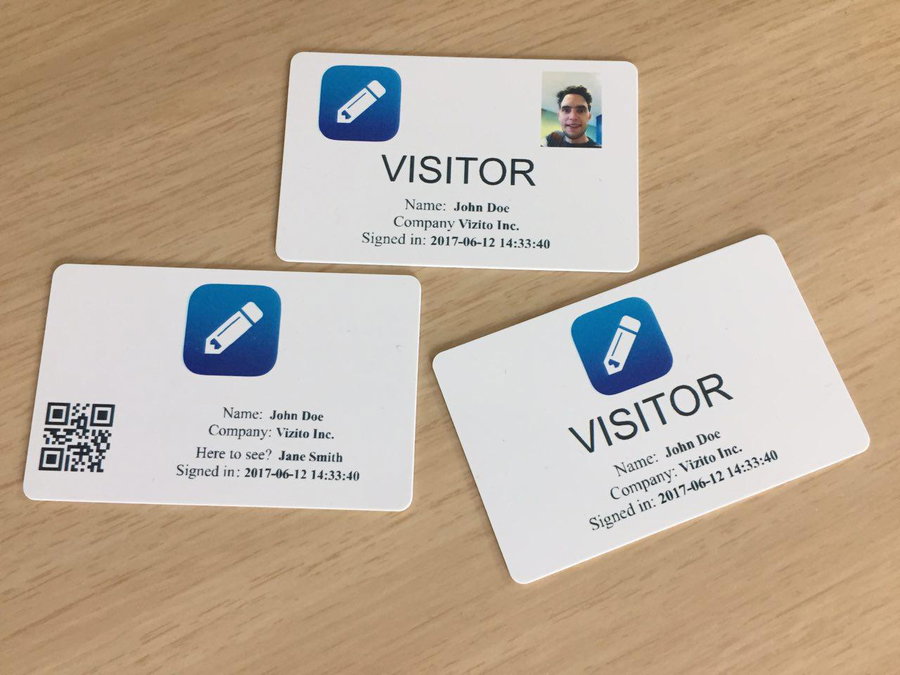
As the Zebra ZXP Series 3 does not have Airprint support, you are required to simulate this with third party software. For instance Presto from Collobos is an easy to use candidate for this purpose.
A card badge is an HTML template that you edit in the HTML editor of a visit type’s badge.
Open the badge
- Go to the Vizito backoffice and select “Account settings” > “Visit types” in the left menu.
- Click “Edit” next to the visit type that prints on cards, then open the “Badge” tab.
- Under “Badge”, look at the badge card.
- If “Type” reads “HTML template”, click “Edit” below the card. The HTML editor opens and you can skip the next section.
- If “Type” reads “Designed badge”, or you see “No badge for this visit type yet”, follow the next section first.
Turn the badge into an HTML template
“Edit” only opens the HTML editor for a badge that is an HTML template. A designed badge or a new badge passes through the badge designer once.
-
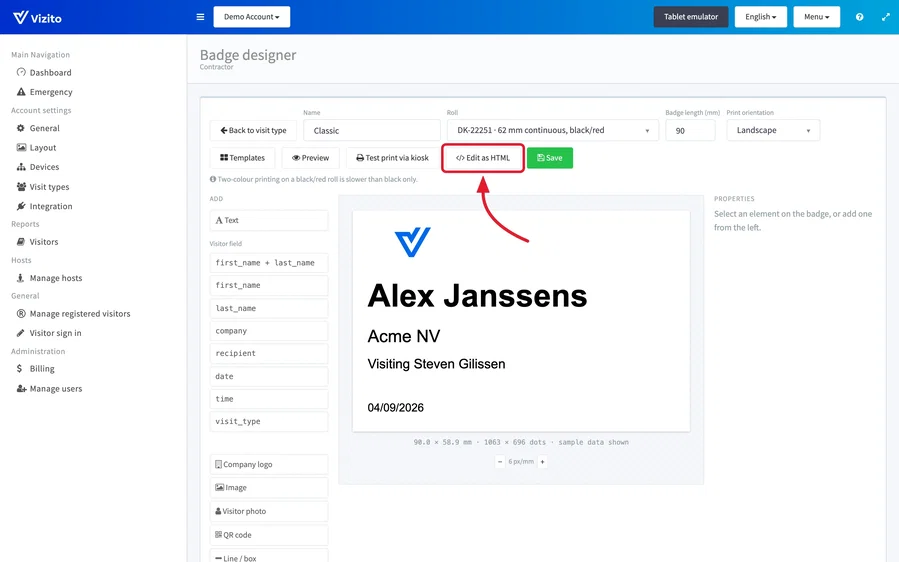
Open the badge designer: click “Edit” below the card of a designed badge, or “Design from scratch” if the visit type has no badge yet.
-
Click “Edit as HTML” in the designer toolbar, then click “Convert” in the “Edit as HTML?” window.
-
You are back on the “Badge” tab, where the card now reads “HTML template”. Click “Edit” below the card to open the HTML editor.
Note: “Convert” cannot be undone, and a badge that several visit types share is converted for all of them. To leave a shared badge as it is, click “Remove badge” on this visit type first and then start a new badge. See Badge designer for the designer itself.
Edit the HTML
-
In the HTML editor, click the
<>icon in the toolbar. The “Source code” window opens.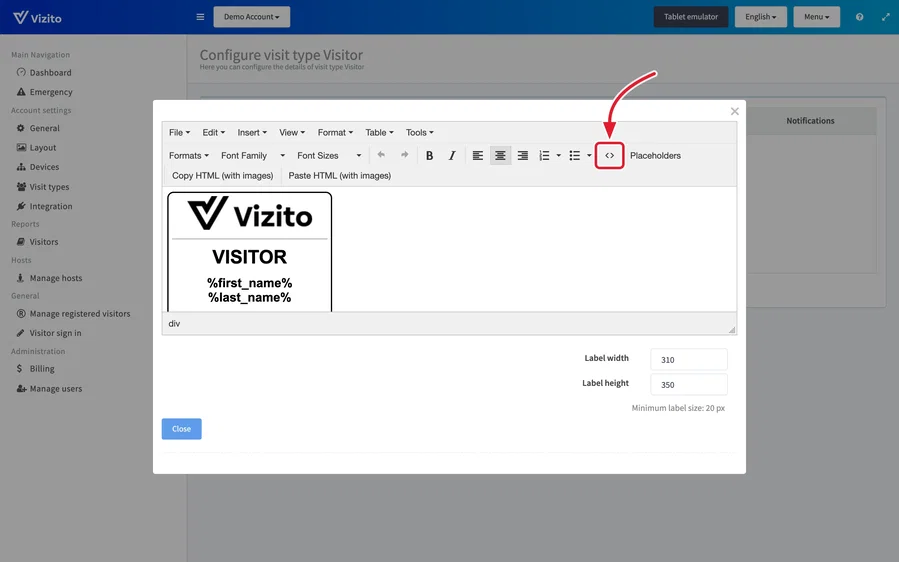
-
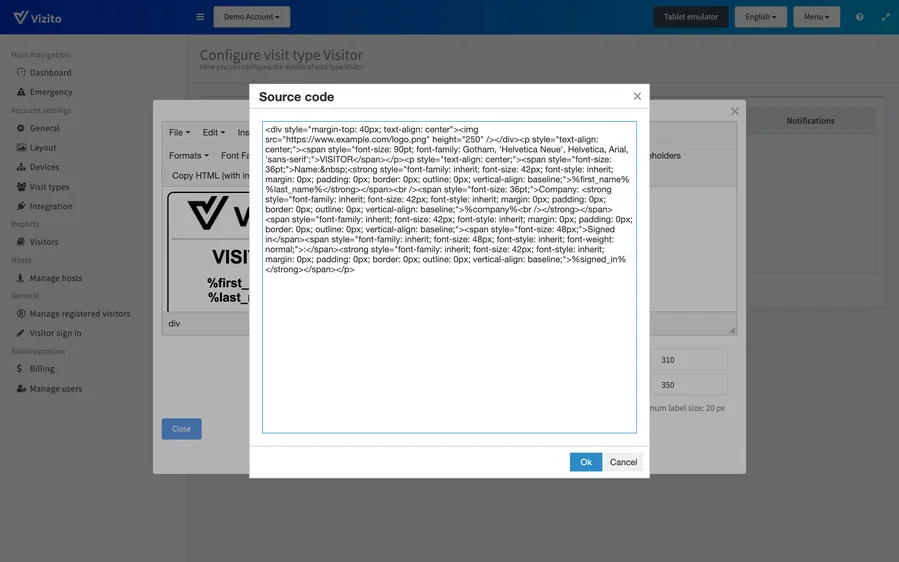
Type or paste the HTML of your badge in the window and click “Ok”.
-
Set “Label width” and “Label height” under the editor to the size of your card badge. Both are in pixels and the smallest accepted value is 20 px. A badge that you converted from the designer still has the size of its label roll here.
-
Click “Save” in the editor. “Close” leaves the editor without keeping your changes.
Note: a badge that several visit types share changes for all of them when you save it.
Two things to know when you write the template:
- A logo or any other image has to be reachable on a public URL so the printer can load it.
%qrcode-known_visitor_id%prints a QR code the visitor can scan to sign out. See Add placeholders for the full list of placeholders.