Custom roles
In this article
A custom role is a role you put together yourself, from the same list of privileges the five built-in roles are made of. Use one when none of the built-in roles fits the work somebody does in the backoffice. For what the built-in roles can do and how to add a user, see User management and user roles.
When a custom role is the right answer
The built-in roles are fixed packages. A custom role helps when the closest package gives somebody too much or too little:
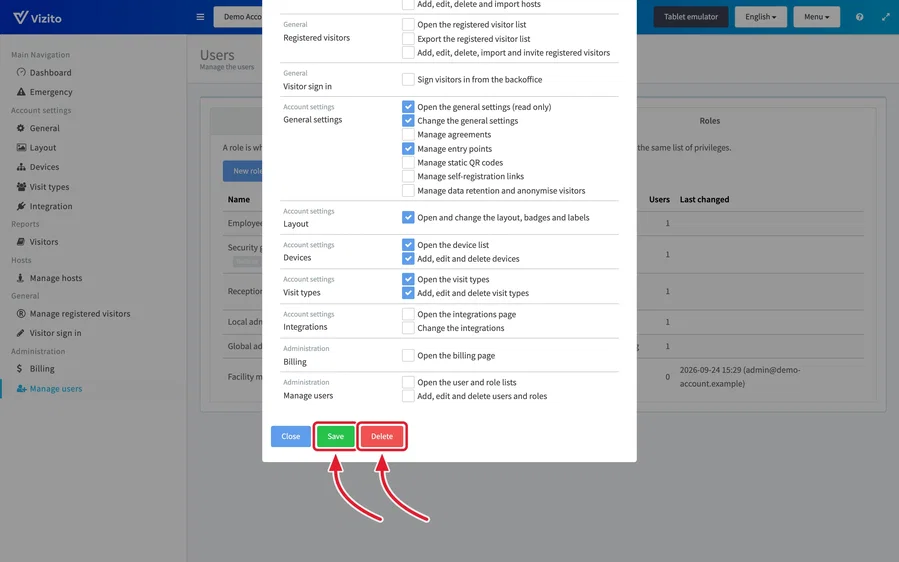
- The settings, without the visitors. A facility manager looks after the kiosks, the entrances, the layout and the visit types, but has no reason to see who visited. Local admin would also give them the visitor log. A custom role with “General settings”, “Layout”, “Devices” and “Visit types” gives them just that part. Leave out “Dashboard” as well, because its “Latest activities” lists visitors by name.
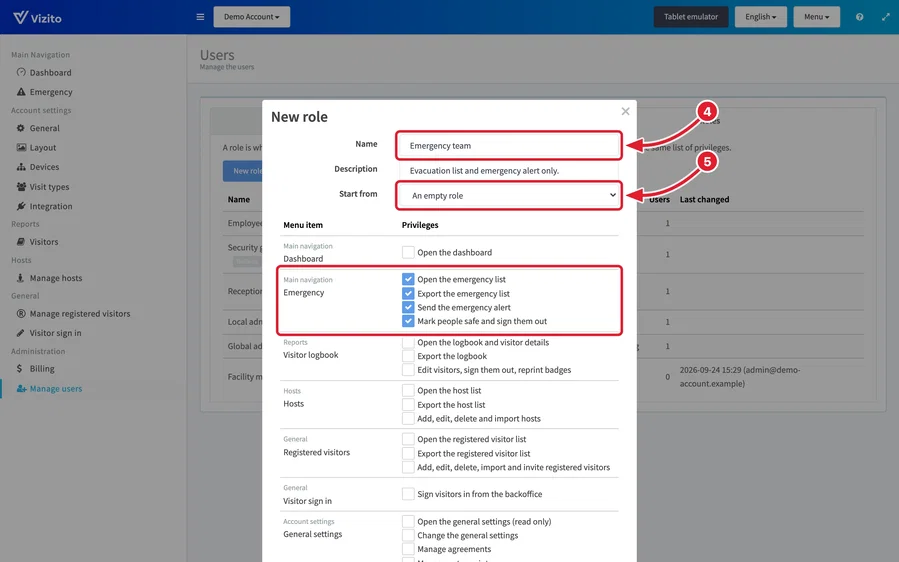
- The emergency list, and nothing else. A fire warden needs the evacuation list during an alarm. Security guard also opens the dashboard and the visitor log. A custom role with only the four “Emergency” privileges gives them the list, its export, the emergency alert and marking people safe.
Before you start
- Custom roles are an Enterprise feature. A Starter account has them while its trial runs, and Vizito can switch them on for other plans. Without them, the “Roles” tab shows “This feature is only available for Enterprise subscriptions.” where the “New role” button would be. Custom roles made before a downgrade stay, and you can still change or delete them.
- You need the privilege “Add, edit and delete users and roles”. Local admins and Global admins have it.
- A custom role belongs to the location you are working in when you create it. Other locations do not see it.
Create a custom role
-
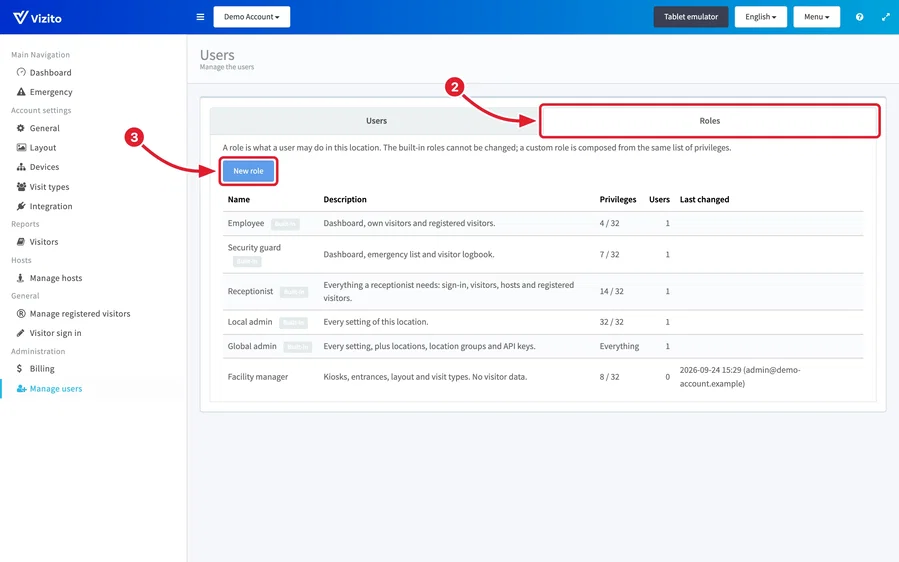
Open the Vizito backoffice and select “Administration” > “Manage users” in the left menu.
-
Open the “Roles” tab. It lists the five built-in roles, marked “Built-in”, and the custom roles of this location, with the number of privileges and users each one has.
-
Click “New role”.
-
Type a “Name” and, if you like, a “Description”. Both appear in the list of roles, so a description that says who the role is for helps the next administrator.
-
Under “Start from”, pick the built-in role that comes closest to copy its privileges, or keep “An empty role”.
-
Tick the privileges the role needs. The editor has one row per menu item, with the menu heading it sits under shown above its name. The first privilege of a row, such as “Open the emergency list”, puts the menu item in the user’s menu, and the others unlock what they can do there. Ticking one of those also ticks the first one, and unticking the first one clears the whole row.
-
Scroll down and click “Save”. The role appears in the list with the number of privileges it holds.
To see exactly what a built-in role holds, click it on the “Roles” tab. It opens read-only, with “Close” as the only button.
Change or delete a custom role
-
On the “Roles” tab, click the role. It opens in the same editor, now titled “Role”.
-
Change the name, the description or the privileges, then click “Save” at the bottom. The change applies straight away, also to users who are signed in at that moment.
-
To delete the role, click “Delete”.
-
Confirm with “Yes”.
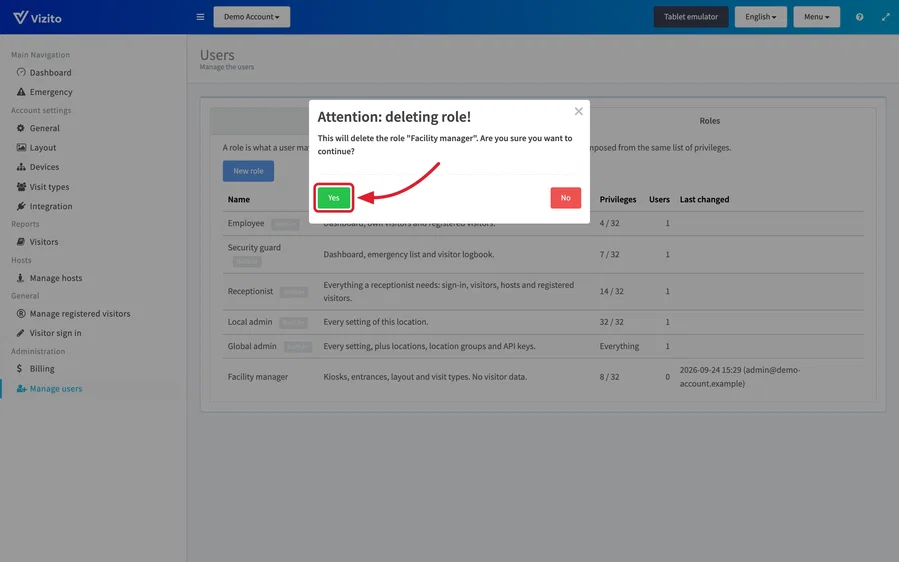
“Delete” is greyed out while the role is still given to somebody. The “Users” column on the “Roles” tab shows how many, and hovering the button says “Move them to another role first.”
Give a user a custom role
-
On the “Users” tab under “Administration” > “Manage users”, click the user. “User details” opens.
-
Select the custom role under “Role”. Custom roles come after the built-in ones in the list.
-
Click “Save”.
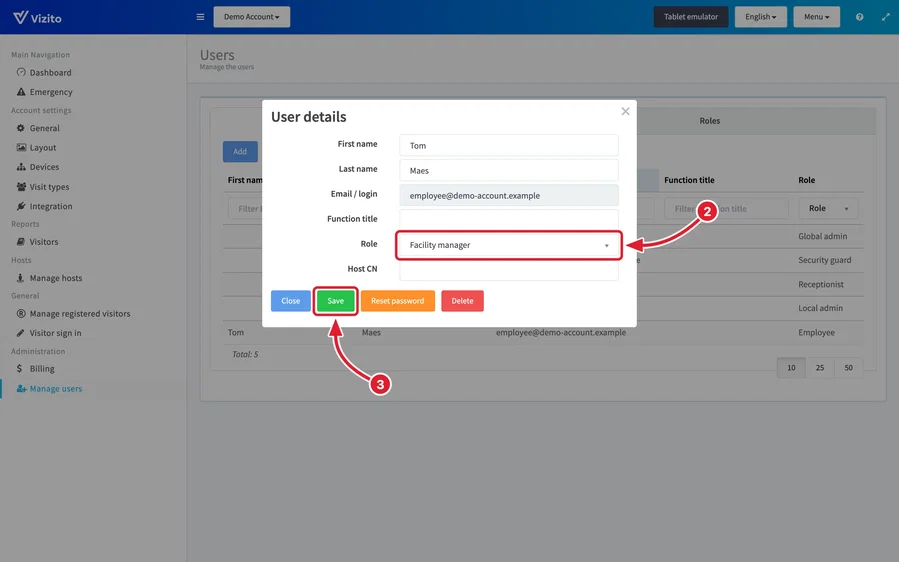
For a new user, click “Add” on the same tab and pick the custom role under “Role” in the same way. User management and user roles explains the rest of that dialog.
A custom role cannot come from Microsoft Entra ID: the “Role” next to each group in the Azure Synchronization settings only offers the five built-in roles.
Rules you will run into
- Built-in roles cannot be changed. To get something close to one, create a custom role and pick that built-in role under “Start from”.
- You cannot hand out more than you have. A privilege you do not hold yourself is greyed out in the editor and marked “not held by you”. A role that holds such a privilege is greyed out in the “Role” list of “User details”, and only a Global admin can make somebody Global admin.
- You cannot change your own role. Your own “User details” show your role without a list to choose from, and a custom role you hold yourself opens read-only. Ask another administrator.
- Role names are unique. A custom role cannot have the name of another role of the location or of a built-in role: Vizito answers “A role with that name already exists.”
- Some things stay with the Global admin. Creating locations and location groups and managing API keys are not in the list of privileges, so no custom role can do them.
- An Employee’s own-visits filter does not carry over. An Employee only sees the visits of the host linked to them. A custom role with “Open the logbook and visitor details” sees every visit of the location, even when you started from Employee.
When the editor refuses to save with “You cannot grant a privilege you do not hold yourself, or change the role you hold.”, the role holds a privilege you do not have, or it is the role you hold yourself.